How to Use a Teleprompter on Zoom
 By the TeleP teamUpdated 5 min read
Quick answer
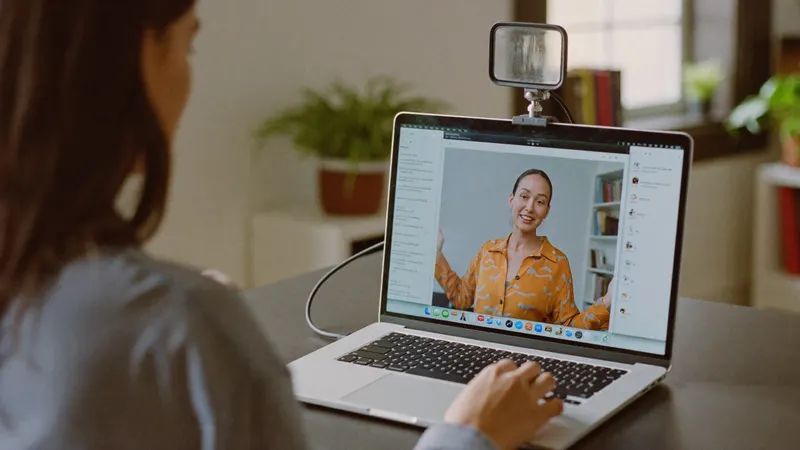
To use a teleprompter on Zoom, open a browser teleprompter in its own window, resize it to a narrow strip and drag it to the top of your screen under the webcam. Keep Zoom below it or on a second screen, start with a slow scroll, and use the keyboard.
Free online teleprompter
Paste your script and read it on camera. Runs in your browser; your script is never uploaded.
Tip: in the teleprompter, press Pop out to keep the script in a small window next to your webcam.
The setup at a glance
The aim is simple: the words you read should sit as close as possible to the webcam, so your eyes barely move away from the lens.
For a laptop with a built-in webcam at the top of the screen:
- Top of the screen, centered under the webcam: a narrow teleprompter window, about a third of the screen wide and a few lines tall
- Below it: the Zoom window, with gallery or speaker view
- Anywhere else: notes, chat, slides
For an external webcam, mount it on the monitor that shows the teleprompter, centered over the window.
Step-by-step
1. Open the teleprompter in a separate window
Open the free online teleprompter in a new browser window (not just a tab), so you can resize and move it independently of Zoom. It runs in the browser; your script is stored only in that browser.
Paste your script. If you have not written it yet, the script templates include a presentation format that loads straight into the teleprompter.
Tip: use Pop out. The teleprompter’s Pop out button opens a small mini prompter window. In Chrome and Edge on a computer, it stays on top of other apps, so Zoom can’t cover your script; drag it right under the webcam. In other desktop browsers it opens as a normal small window that doesn’t stay on top, and it isn’t available on phones or tablets.
You can also Import file (.docx, .txt, .md or .rtf) instead of pasting, and Share link sends the script to a colleague inside the link itself.
2. Make it narrow and short
Resize the window to a strip near the webcam. Then, inside the teleprompter:
- Raise the margins so each line has 4 to 7 words.
- Set the font size so you can read it from your normal seat without leaning in.
- Turn on the reading line and move it to the top, the spot closest to the lens.
A narrow column means your eyes move a short distance, which is much harder for others to notice than reading full-width lines.
3. Position the Zoom window
Move Zoom below the teleprompter or onto a second monitor. Turn off self view if seeing yourself distracts you, but check your framing first: camera at eye level, your eyes about a third of the way down the frame.
If your laptop webcam looks up at you, raise the laptop on books or a stand until the lens is level with your eyes. A camera looking up exaggerates every downward glance.
4. Set speed and controls before the call
Do a test run with your own voice and adjust the speed so the line you are reading stays near the reading line. Then learn the controls:
- Keyboard: Space plays or pauses, and the up and down arrows change speed. Click the teleprompter window once so it has keyboard focus before you start.
- Presentation clicker: most clickers send page or arrow keys, which the online teleprompter uses to jump back or forward.
- Voice-follow scrolling: in Chrome, Edge and Safari, where speech recognition is available, the text can follow your voice. Test it with Zoom running, since both use your microphone.
Use the words-to-time calculator to check that your script fits your speaking slot.
5. Present
- Look into the lens for the first sentence, then read.
- Pause the scroll when someone asks a question. Answer naturally, then resume.
- Look back at the lens at the start of each new point.
Single-screen vs. two-screen vs. phone
| Setup | Where the text goes | Best for |
|---|---|---|
| Laptop only | Narrow window under webcam | Most calls, webinars |
| Laptop + second monitor | Under webcam; Zoom elsewhere | Long presentations, panels |
| Laptop + phone | Phone under the webcam | Free computer screen |
| Camera + glass rig | Mirrored text over lens | Polished webinars, recorded talks |
What to watch out for with each:
- Laptop only: the Zoom window can crowd the teleprompter. It also works for interviews.
- Laptop + second monitor: the teleprompter goes under the webcam and Zoom on the other screen, so the webcam must be on the teleprompter’s monitor.
- Laptop + phone: run the online teleprompter on the phone and prop it right under the webcam. Don’t let it sit too low; keep it touching the bottom of the lens area.
- Camera + glass rig: needs the mirror setting; see the DIY build below.
If you want text directly over the lens, see how to make a DIY teleprompter with a 45-degree glass pane and the mirror setting.
Screen sharing without showing your script
When you share in Zoom, choose a specific window (your slides or browser tab) instead of the whole desktop. The teleprompter window is then not part of the share. If you must share the whole desktop, move the teleprompter to your phone for that segment.
Recording a Zoom presentation
If you are recording a talk rather than presenting live, you can skip Zoom entirely: the online teleprompter has optional webcam recording that stays on your device and downloads as a video file. For phone recording, a teleprompter app is easier.

Record it on your phone
TeleP scrolls your script over the iPhone camera while you record, then adds captions automatically.
Troubleshooting
| Problem | Fix |
|---|---|
| Keys do nothing | Click the teleprompter window once |
| Zoom covers the text | Pop out, or shrink Zoom |
| Eyes still look down | Window higher and narrower |
| Voice-follow loses its place | Read as written, or scroll manually |
| You rush when watched | Start one speed step slower |
| Script too long | Cut it before the call |
Why these work:
- Keys: they go to whichever window has focus, so click inside the teleprompter before you start.
- Zoom covering the text: move the Zoom window to the lower half of the screen, or onto a second monitor.
- Eyes looking down: also raise the laptop and sit a little farther back.
- Voice-follow: switch to manual scroll for ad-libbed parts.
- Rushing: also pause at each new point.
- Length: reading faster to fit sounds rushed.
Checklist for your next call
- Teleprompter open in its own browser window
- Window narrow, at the top of the screen, under the webcam
- Webcam at eye level
- Reading line at the top; 4 to 7 words per line
- Speed tested with your own voice
- Teleprompter window clicked so keyboard controls work
- Sharing a specific window, not the full desktop
- Notifications muted
Questions and answers
Can people on Zoom see my teleprompter?
Not if it runs in a separate window and you share only your camera. If you share your screen, share a specific window or app (such as your slides) rather than the whole desktop, so the teleprompter window stays private.
How do I read a script on Zoom without looking like I'm reading?
Place the text in a narrow column just below the webcam, sit a little farther back with a larger font, and read in phrases. Pause and look into the lens at the start of each new point.
Does a teleprompter work with Microsoft Teams and Google Meet too?
Yes. A browser teleprompter is just a separate window, so the same setup works with Teams, Google Meet, Webex or any app that uses your webcam.
Can I use my phone as a teleprompter for Zoom?
Yes. Open the online teleprompter on your phone and stand it directly under or in front of your webcam, as close to the lens as possible. It keeps your computer screen free for the meeting.
What if I have two monitors?
Put the webcam on the monitor that shows the teleprompter, and the Zoom window and chat on the other one. Your eyes stay near the lens while you read.