
Online teleprompter
Paste or type your script, then press Start recording or Read without camera. Everything runs in this browser tab, and your script and any recording stay on your device.
Loading the teleprompter…
Loading the teleprompter…
How to use the online teleprompter
- Add your script. Paste or type your script into the editor, import a file (.docx, .txt, .md or .rtf), or open one from the script templates. Lines that start with # become section cues.
- Set speed and text inside the prompter. Once the prompter screen opens, use the Aa and ⚙ buttons on its control bar to set the scroll speed, text size, font, line spacing, margins and colors until the text reads comfortably from where you sit.
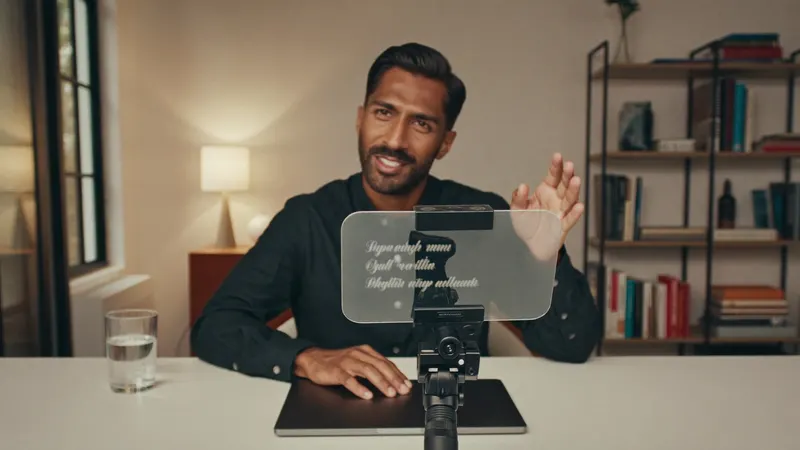
- Mirror for teleprompter glass. Reading through beam-splitter glass? Turn on mirror mode in the ⚙ settings on the control bar (or press M) so the reflected text reads the right way round.
- Start and control it. Press Read without camera to read, or Start recording to film yourself at the same time. A countdown gives you a moment to get ready, then the text scrolls. Space pauses, the up and down arrows change speed, and a presentation clicker’s page keys jump back or forward.
- Record if you want. Start recording turns on your webcam while you read. When you stop, the video opens in the editor on this device, where you can trim, mirror and export it; nothing is uploaded.
A free autocue in your browser
An autocue, prompter or teleprompter all mean the same thing: text that scrolls at a steady pace so you can read while looking at the camera. This one needs no download and no account. It works in current versions of Chrome, Edge, Safari and Firefox on a laptop, desktop or tablet.
Voice-follow scrolling
In browsers that support speech recognition (such as Chrome, Edge and Safari), you can let the prompter follow your voice so the text moves as you speak and waits when you pause. It is off until you switch it on.
Keyboard and clicker shortcuts
| Key | Action |
|---|---|
| Space or K | Play or pause |
| Up / Down arrows | Faster or slower (10 wpm per press) |
| Left / Right, Page Up / Page Down | Jump back or forward (most presentation clickers send these) |
| Home / End | Go to the start or the end of the script |
| + / − | Text size |
| M | Mirror |
| F | Fullscreen |
| R | Start or stop recording (when the camera is on) |
| C | Camera on or off |
| V | Voice follow on or off |
| H | Hide or show the script |
| E | Edit the script |
| P | Pop out into a small window |
| Shift + arrow keys | Resize the script panel (while the camera is on) |
| ? | Open settings with this list |
| Esc | Exit |
Not sure how long your script runs? Check it with the words to time calculator, or rehearse with the speech timer.
Questions and answers
Is this online teleprompter free?
Yes. It is free, needs no sign-up and shows no ads inside the prompter.
Does the teleprompter work offline?
Once the page has loaded, the teleprompter runs entirely in your browser, so it keeps scrolling if your connection drops.
Is my script saved or uploaded?
Scripts are saved in this browser only, using local storage, so they are there when you come back on the same device. They are never sent to a server.
What is mirror mode for?
Teleprompter glass reflects the screen, which flips the text. Mirror mode flips it back so it reads correctly in the glass.
Can I control it with a presentation clicker?
Yes. Most clickers send Page Up and Page Down or arrow keys, which jump the script back or forward. The keyboard works too: Space pauses and the arrow keys change speed.
How fast should the teleprompter scroll?
Match it to your natural speaking pace. Measure yours with the reading speed test, then set the prompter to that many words per minute.