How to Use a Teleprompter
 By the TeleP teamUpdated 6 min read
Quick answer
To use a teleprompter, write your script in short spoken lines, place the text as close to the camera lens as you can, set a font you can read from your normal position, then start slow and adjust the scroll speed until it matches your voice. Rehearse twice.
Free online teleprompter
Paste your script and read it on camera. Runs in your browser; your script is never uploaded.
What a teleprompter actually does
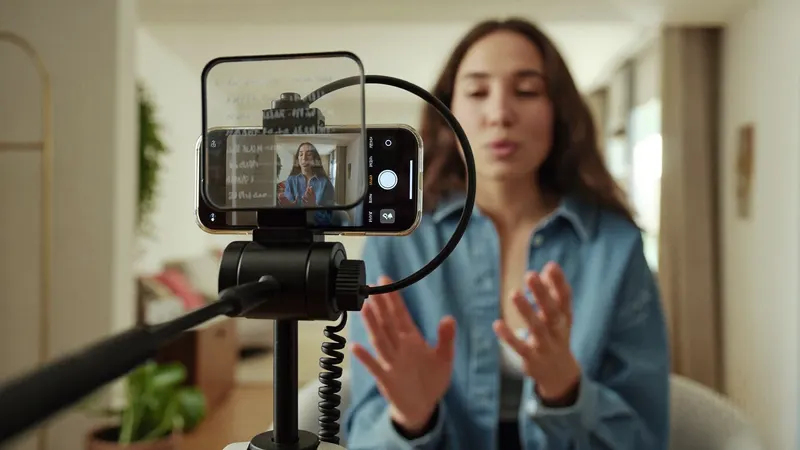
A teleprompter scrolls your script at a steady speed in a spot where you can read it while you appear to look at your audience. That spot is either a screen right next to the camera lens (phone, laptop, tablet) or a sheet of angled glass directly in front of the lens that reflects a mirrored screen below it.
Either way, you need the same five things to get a good take:
- A script written to be spoken, not read
- Text placed as close to the lens as possible
- A font size you can read without squinting
- A scroll speed that matches your natural pace
- A way to pause and restart without touching the camera
The rest of this guide walks through each one. You can follow along in the free online teleprompter above: paste your script and it runs in your browser, with nothing to install.
Step 1: Write the script for your mouth
Text that reads well on a page often sounds stiff out loud. Before you load anything into a prompter:
- Keep sentences short. One idea per line. If a sentence needs a breath in the middle, split it.
- Write the way you talk. Use contractions (“you’ll”, “it’s“). Drop words like “furthermore” and “utilize”.
- Mark pauses. A blank line or an ellipsis tells you to stop for a beat. In our online teleprompter, typing [PAUSE] shows a visible pause cue, and a line starting with # becomes a section cue.
- Spell out tricky items. Write “twenty twenty-six” or “four point five percent” if you tend to stumble on numerals.
- Read it aloud once at your desk. Anything you trip over will be worse on camera. Rewrite it now.
If you are starting from a blank page, the script templates give you a fill-in structure for intros, hooks, sales videos and speeches, and load straight into the teleprompter.
Step 2: Check the length against your time
Paste the finished script into the words-to-time calculator. Common estimates put conversational speech at about 120 to 150 words per minute and presentations at 100 to 150 (VirtualSpeech). Using 120 to 150 words per minute:
| Target length | Approximate words |
|---|---|
| 30 seconds | 60–75 |
| 60 seconds | 120–150 |
| 2 minutes | 240–300 |
| 5 minutes | 600–750 |
If you are over, cut. A teleprompter will not make you talk faster without sounding rushed.
Step 3: Place the text by the lens
This is the step that decides whether viewers can tell you are reading.
- Phone, front camera: keep the text in the top third of the screen, near the camera. Hold or mount the phone at eye level, about arm’s length away.
- Laptop or desktop webcam: make the teleprompter window narrow and drag it to the top of the screen, directly under the webcam. Your eyes should barely drop.
- Separate camera plus a screen: put the screen right behind or just under the lens. If you use beam-splitter glass, turn on mirror or flip so the reflected text reads correctly. The online teleprompter has mirror and flip settings for this.
Set the camera at eye level or slightly above. A camera looking up at you exaggerates every glance down.
Step 4: Set font size, margins and reading line
Open the settings and adjust while you sit in your recording position, not while leaning toward the screen.
- Font size: large enough to read without effort, small enough to fit 4 to 7 words per line. Bigger text with wider margins means a narrower column and less side-to-side eye movement.
- Margins: widen them so the text sits in a narrow column. This is the single biggest fix for “darting eyes”.
- Line spacing: a little extra space helps you keep your place.
- Reading line: turn it on and read the line at the marker. Keep the marker high, close to the lens.
Step 5: Find your scroll speed
Start slow. Read the first paragraph out loud and nudge the speed up until the line you are reading stays near the reading line without you chasing it or waiting for it.
Signs your speed is wrong:
- You are waiting at the bottom of the text: too slow, or you are reading too fast.
- You are reading from the top edge and rushing: too fast.
- Your pace changes through the script: use the pause key at section breaks rather than one fixed speed.
If you want a number to start from, take the reading speed test to measure your own words per minute, and see what speed a teleprompter should be for how to translate that into a setting.
Step 6: Choose how you control it
You need to pause, back up and change speed without walking to the computer.
- Keyboard: in our online teleprompter, Space plays or pauses, the up and down arrows make it faster or slower, and Home jumps back to the top. The full list is under “Keyboard and clicker shortcuts”.
- Presentation clicker: most clickers send page-up and page-down (or left and right arrow) keys. The online teleprompter treats those as jump back and jump forward, so a cheap clicker lets you repeat a line or skip ahead.
- Voice-follow scrolling: in browsers that support speech recognition (Chrome, Edge, Safari), the online teleprompter can follow your voice so the text moves when you speak and waits when you pause.
- Countdown: set a 3 to 5 second countdown so you can settle, look into the lens and start cleanly.
Step 7: Rehearse twice, then record
Do one full run just reading, to catch typos and awkward lines. Do a second run as a real take, out loud, at performance energy. Then record.
During the take:
- Look at the lens at the start of every section, then glance at the text.
- Pause at blank lines. Silence on camera feels longer to you than to viewers.
- If you stumble, pause, back up a line and repeat the sentence. You can cut the mistake out later.

Record it on your phone
TeleP scrolls your script over the iPhone camera while you record, then adds captions automatically.
Quick setup checklist
- Script read aloud once and rewritten where you tripped
- Length checked against your target time
- Text window as close to the lens as possible
- Camera at eye level
- Narrow column, 4 to 7 words per line
- Reading line set high
- Scroll speed tested on the first paragraph
- Pause and speed controls within reach
- Countdown on
- Two rehearsals done
Common mistakes
Putting the text in the middle of a big screen. Your eyes will visibly drop and sweep. Shrink the window and move it up.
Writing a wall of text. Long paragraphs make you lose your place. Break the script into short lines with blank lines between ideas.
Setting the speed once and never touching it. Your pace changes between the hook, the explanation and the call to action. Pause and adjust.
Recording the first run. The first run is for finding problems. Treat it as a rehearsal.
Leaning toward the screen. Set the font size from your recording position. If you have to lean in to read, the font is too small or the screen is too far away.
Questions and answers
Is it hard to read from a teleprompter?
Most people get comfortable within two or three practice runs. The hard part is not reading, it is pacing. Start the scroll slower than you think you need, speed it up a notch at a time, and keep your lines short so your eyes do not have to travel far.
Should the teleprompter control me, or should I control it?
You control it. On a solo shoot use a keyboard, clicker or voice-follow scrolling so you can pause and adjust speed while you talk. If someone else runs the prompter, they follow your pace, not the other way around.
How far away should a teleprompter be?
As far as you can comfortably read it. The farther the text is from your face, the smaller your eye movements look on camera. A phone held at arm’s length works for selfie video; a laptop or tablet screen works well at about an arm’s length to a little more with a larger font.
Can I use a teleprompter without special glass?
Yes. For webcam, phone and laptop recording you just put the text on a screen right next to the lens. Beam-splitter glass is only needed if you want the text directly in front of the lens, and then the text has to be mirrored.
How long should a teleprompter script be?
Write to time. At a typical speaking pace of roughly 120 to 150 words per minute, a 60-second video is about 120 to 150 words. Paste your script into a words-to-time calculator to check before you record.