How to Use a Teleprompter on iPad
 By the TeleP teamUpdated 5 min read
Quick answer
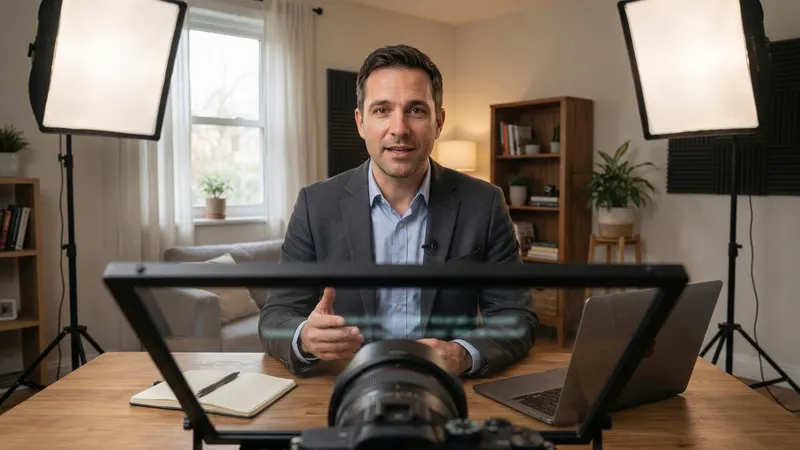
To use a teleprompter on iPad, open a teleprompter app or a browser teleprompter, place the text right beside the front camera, and set font size and speed from your recording position. For a separate camera, lay the iPad under 45-degree glass and turn on mirror mode.
Free online teleprompter
Paste your script and read it on camera. Runs in your browser; your script is never uploaded.
Three ways to use an iPad as a teleprompter
An iPad is a good teleprompter because the screen is large enough for big, readable text at a distance. How you set it up depends on which camera is filming you.
| Setup | Camera | Where the text goes | Mirror needed? |
|---|---|---|---|
| Selfie recording | iPad front camera | Screen, next to camera | No |
| Prompter for another camera | DSLR, mirrorless, camcorder, phone | Glass at 45° over lens | Yes |
| Video calls | Laptop or desktop webcam | iPad propped directly under the webcam | No |
For another camera, the iPad lies under glass set at 45 degrees in front of the lens, and the text you read is its reflection.
Setup 1: Record yourself with the iPad’s front camera
Find your camera
Before anything else, check where your iPad’s front camera is. On some models it sits on the long edge when the iPad is in landscape; on others it is on the short edge, which is at the top in portrait. Hold the iPad so the camera is at the top, in the orientation you want to film in.
Place the text by the lens
- Keep the text in the top third of the screen, right under the camera.
- Use wide margins so each line is a short phrase of 4 to 7 words.
- Set the reading line high, close to the lens.
Mount it at eye level
Use a tripod with a tablet clamp, a stand, or a stack of books. The camera should be level with your eyes, an arm’s length or a little more away. Because the iPad screen is large, you can sit farther back than with a phone and still read comfortably, which makes eye movement harder to see.
Set font and speed from your seat
Sit where you will record, then adjust font size until you can read it without leaning in. Start the scroll slow and nudge it up until the line you are saying stays at the reading line. If you have not measured your pace, the reading speed test tells you your words per minute in about a minute.
Record
A teleprompter app lets you read and record in one place. Apps differ in what they offer, so check the App Store listing for the features you need. Our app, TeleP, scrolls your script while recording on iPhone and iPad, with adjustable speed, font size and text position, a countdown, automatic captions, and layouts for Instagram, TikTok and YouTube.
Record it on your phone
TeleP scrolls your script over the iPhone camera while you record, then adds captions automatically.
Setup 2: Use the iPad as a prompter for another camera
This is the classic glass teleprompter, with the iPad as the screen.
- Lay the iPad flat, screen up, in front of and below the camera lens.
- Mount a clear pane of glass or acrylic above it at 45 degrees, leaning toward the camera.
- Put the lens right behind the glass, centered.
- Open the free online teleprompter in Safari, paste your script, and turn on mirror or flip so the reflection reads correctly.
- Block stray light behind the glass with black fabric or card, and raise screen brightness to maximum.
- Control it from a distance with a Bluetooth keyboard or presentation clicker, or use voice-follow scrolling.
You can buy an iPad teleprompter rig or build one from a box and a picture frame; how to make a DIY teleprompter has a materials list and step-by-step build.
Setup 3: iPad under your webcam for calls
If you present on Zoom, Teams or Meet from a computer, put your script on the iPad instead of the computer screen:
- Prop the iPad directly under the webcam, as high as it will go without blocking the lens.
- Open the online teleprompter in Safari and keep the column narrow, so your eyes stay close to the camera.
- Use the iPad’s on-screen controls, or a Bluetooth keyboard paired to the iPad, to pause and change speed.
This keeps your computer screen free for the meeting, chat and slides.
Using Split View or Slide Over
iPadOS lets you put two apps side by side (Split View) or float one over another (Slide Over). That is handy for editing a script in one app while previewing it in another. For recording, though, give the teleprompter the full screen so you can use large text and keep it near the camera.
Controls that work on iPad
| Control | How it helps | Notes |
|---|---|---|
| On-screen tap | Play, pause, adjust | iPad within reach |
| Bluetooth keyboard | Space; arrows for speed | Full key list in app |
| Presentation clicker | Jump back or forward | Sends page or arrow keys |
| Voice-follow scrolling | Text moves as you speak | Where Safari supports it |
| Countdown | Time to look at lens | Set 3 to 5 seconds |
On a Bluetooth keyboard, Space plays or pauses and the up and down arrows change speed; the online teleprompter lists all keys under “Keyboard and clicker shortcuts”. Most clickers send page or arrow keys, which the online teleprompter uses to jump back or forward with one hand. Voice-follow scrolling works in the online teleprompter where Safari supports speech recognition. The countdown gives you time to sit back and look at the lens.
iPad teleprompter checklist
- Front camera located; iPad oriented with it at the top
- Text in a narrow column right under the camera
- iPad at eye level, an arm’s length or more away
- Font size set from your recording position
- Speed tested on the first paragraph
- Mirror on, only if you are using glass
- Keyboard, clicker, voice-follow or countdown ready
- Do Not Disturb on, so notifications do not cover the script
Common problems
Text too far from the camera. On a large screen it is easy to leave the script in the middle. Drag it up and narrow it.
Notifications pop over the text. Turn on a Focus mode such as Do Not Disturb before you record.
Screen dims mid-take. Set Auto-Lock to a longer time (or Never) in Settings > Display & Brightness while you record.
Reflection is faint on a glass rig. Turn brightness up, darken the area behind the glass, and use a bold font.
Questions and answers
Can I use my iPad as a teleprompter for free?
Yes. Our online teleprompter runs in Safari on iPad with speed, font size, margins, countdown and mirror settings, and no install. Several App Store teleprompter apps are also free to download, with paid upgrades.
Where should the text be on an iPad teleprompter?
As close to the front camera as possible. Check where the camera is on your model: some iPads have it on the long edge in landscape, others on the short edge. Keep the text in a narrow column right next to it.
Is an iPad better than an iPhone as a teleprompter?
For reading, usually yes: the bigger screen fits larger text, so you can sit farther from the camera and your eye movement shows less. For handheld selfie video, a phone is easier to hold and mount.
How do I control an iPad teleprompter without touching it?
Pair a Bluetooth keyboard or a presentation clicker that sends arrow or page keys, use voice-follow scrolling in the browser teleprompter, or set a countdown so you have time to get into position.
Can I use an iPad teleprompter with a DSLR or mirrorless camera?
Yes. Lay the iPad flat under a sheet of glass or acrylic angled at 45 degrees in front of the lens, enable mirror mode, and the camera films through the glass while you read the reflection.